
Team Photo Import
Instead of uploading and cropping a photo for every player one at a time, upload a single team photo. Dugout Master finds each face in it, and you assign the faces to players — a whole roster of player photos in a couple of minutes.
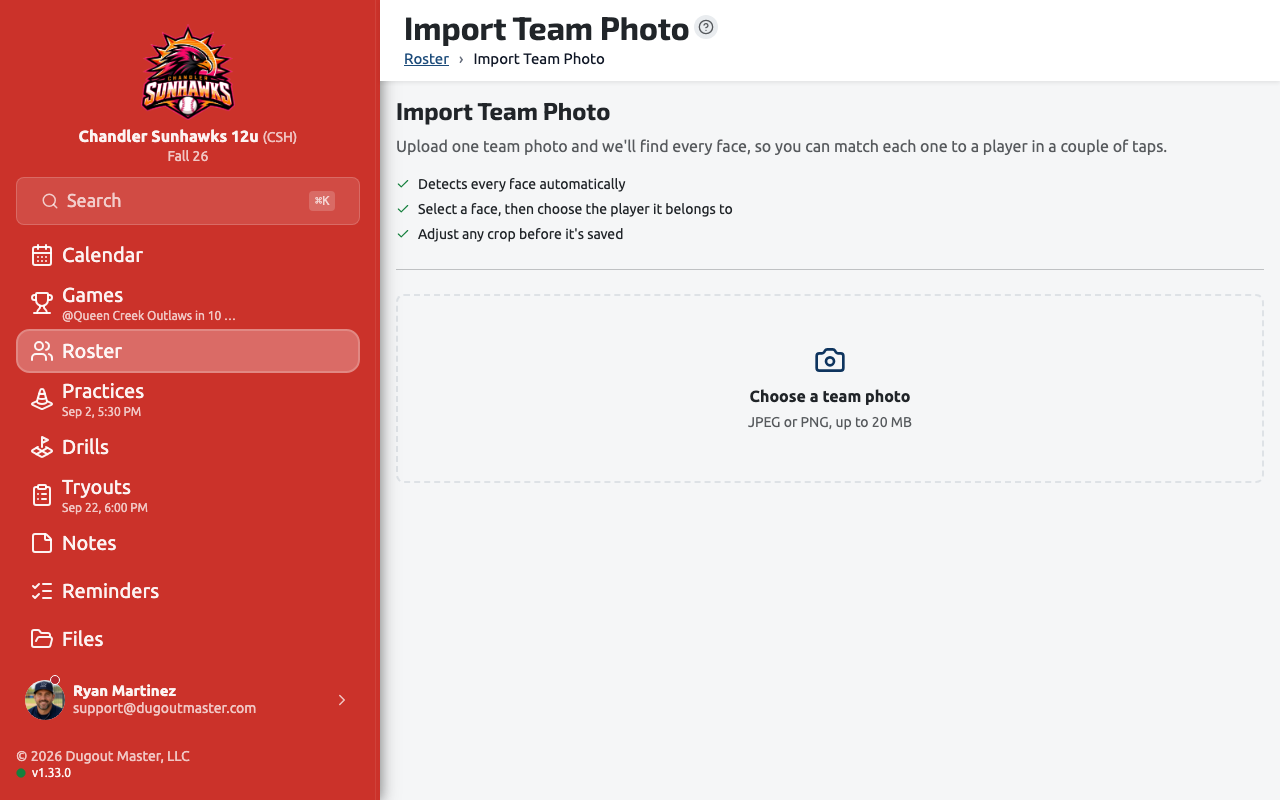
Starting an import
Section titled “Starting an import”Open your Roster, then choose Import Team Photo from the page’s ··· menu.
How it works
Section titled “How it works”-
Upload a team photo.
Choose any team picture — a posed team shot works best. JPEG and PNG are supported, up to 20 MB. If your phone hands over a HEIC file that won’t open, save or export it as a JPEG first.
-
Let it find the faces.
Dugout Master scans the photo and marks every face it found with a numbered badge right on the picture, so you can see exactly who’s who and which faces are still waiting.
-
Match faces to players.
Select a face on the photo, then choose the player it belongs to from the roster panel — search by name or jersey number if the list is long. As soon as you pick a player, the next face is selected for you, so you can work straight through the photo: that’s Timmy, that’s Mason, that’s Eli… A face that isn’t a player — a coach, a parent, a bystander — gets Skip Face and stays out of your way. Assigned players drop out of the list, and a progress bar keeps count.
Made a mistake? Tap Undo right after an assignment, or select any assigned face to change or remove its player.
-
Adjust a crop if you want to.
Every face is cropped to a square head-and-shoulders shot automatically. If one is framed poorly, open the crop adjuster for that player and drag or zoom to reframe it.
-
Save.
Saving creates a player photo for every player you assigned. When you’re done, you can start another import — useful when one photo doesn’t cover everyone — or head back to your roster.
Replacing photos that already exist
Section titled “Replacing photos that already exist”A Replace existing photos switch controls what happens to players who already have a photo. Leave it on to overwrite them with the new crops, or turn it off to keep the photos you already have and only fill in the players who are missing one.
Good to know
Section titled “Good to know”- Your team photo never leaves your device. Face detection runs right in your browser — only the individual player photos you choose to save are uploaded.
- Photos are the same as manually uploaded ones. An imported photo is an ordinary player photo: it appears on the roster, in lineups, and on player pages, and can be replaced or deleted from the player’s profile like any other.
- Better photos detect better. A sharp, well-lit photo where everyone is facing the camera gives the cleanest results. Faces that are turned away, deeply shadowed, or very small in frame may not be found — you can always add those players’ photos individually.
- More faces than players is fine. Skip the coaches, siblings, and bystanders — you can save without assigning every face. Import doesn’t create new players; add a player to your roster first, then assign their face.
- On a phone, the photo stays front and center: select a face, tap Choose Player, and pick from the sheet that slides up. No scrolling back and forth between the photo and the roster.
- Nothing is saved until you save. Assignments live only in the import screen until you commit them, and if a photo or two fails to save, you’ll be told exactly which players to retry.