
Diagram Editor
The diagram editor draws on a real baseball or softball field instead of a whiteboard — place players, a ball, cones, and text, connect them with runs, throws, and hits, and show players the picture instead of describing it. Diagrams are a Pro feature.
Opening the editor
Section titled “Opening the editor”You reach a diagram from wherever it’s used — a drill, a practice’s Field Setup, or a note — or from the standalone Diagrams library under the Drills tab, which lists every diagram on the team with a live thumbnail, a search/sort toolbar, and a “used in N places” count for each one.
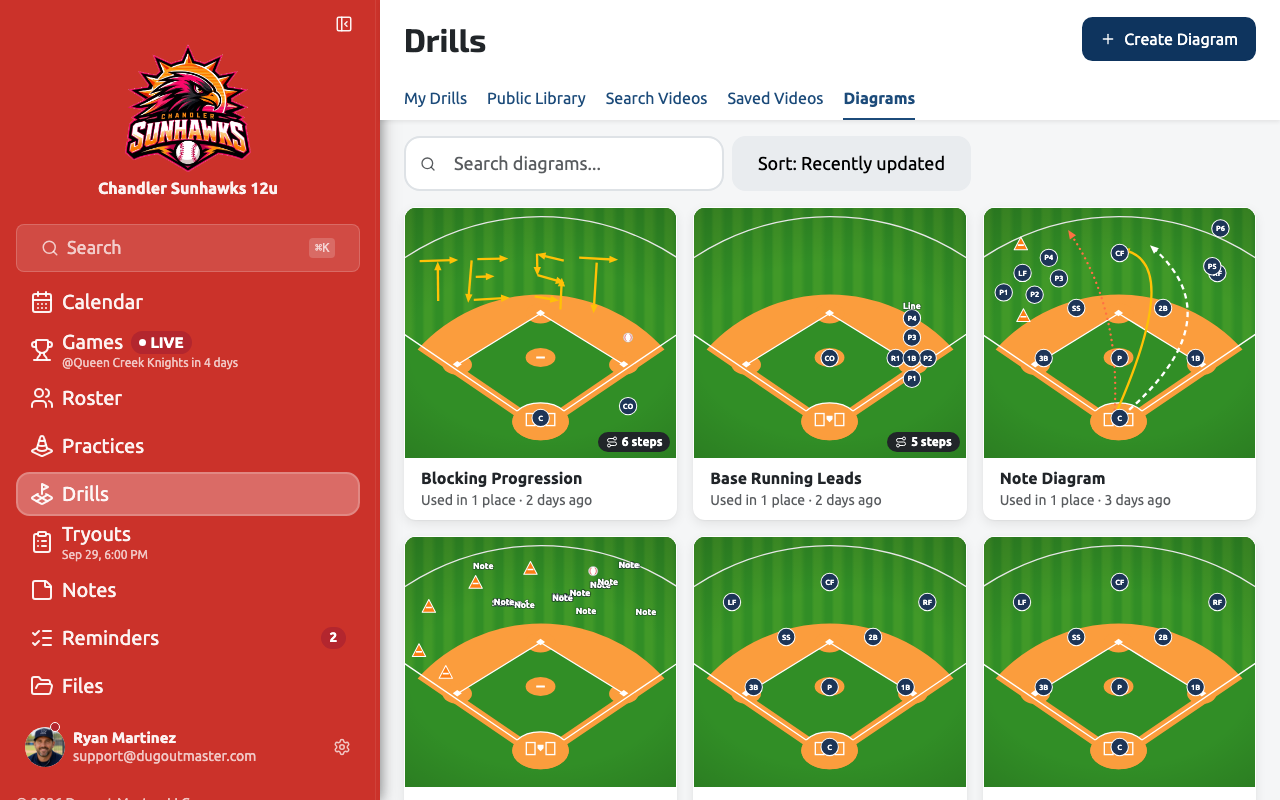
- Create Diagram opens a blank editor for that context.
- Choose Existing opens the library to attach one already on the team.
- Remove on an attached diagram detaches it — the diagram itself stays in the library, since drills, practices, and notes all reference the same diagram rather than owning a copy.
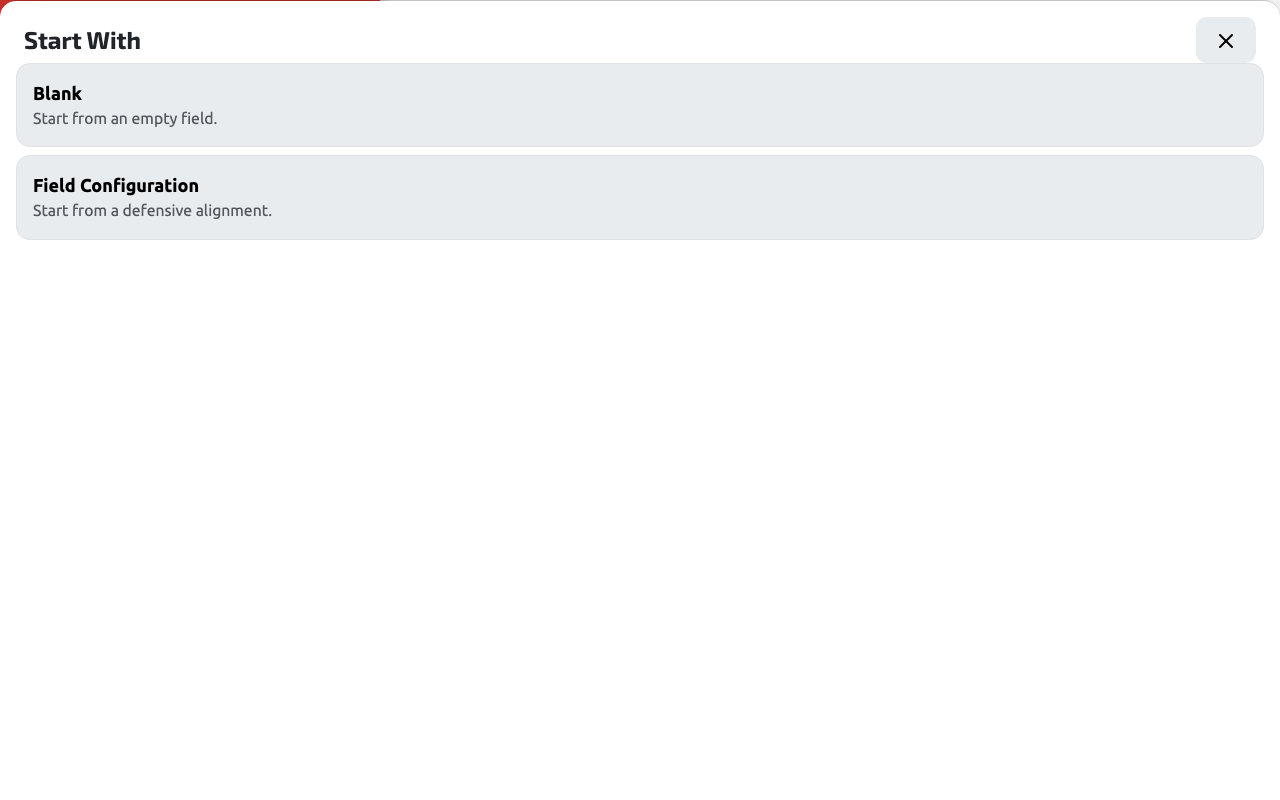
A brand-new diagram prompts you to start from Blank or from one of your field configurations (the same defensive alignments used in Field Configurations), which drops a full set of positioned players onto the field for you to adjust.
Placing objects
Section titled “Placing objects”The tool palette stays on screen the whole time — picking a tool is never a mode you have to back out of — and every tool has a single-letter keyboard shortcut shown in its tooltip.
| Tool | What it does | Limit |
|---|---|---|
| Select | Pick things up and move them | — |
| Player | Tap the field to place a player — generic, or tied to a specific roster player | 30 |
| Ball | Tap the field to place the ball | 1 |
| Cone | Tap the field to place a cone | 10 |
| Text | Tap the field to add a label | 20 |
| Run | Drag to draw a run (solid line) | 30 |
| Throw | Drag to draw a throw (dashed line) | 30 |
| Hit | Drag to draw a hit or rolled ball (dotted line) | 30 |
Run, Throw, and Hit are distinguished by their dash pattern rather than color alone, so a diagram still reads correctly printed in grayscale.
Placing a player offers a roster player picker: arm a specific player’s chip before tapping the field to place them by name and number, or leave Generic player armed to place an unassigned marker. Add whole roster drops every player on the team onto the field in one tap, and Clear players removes every placed player (roster-linked and generic) without touching the ball, cones, text, or drawn paths.
Animated sequences
Section titled “Animated sequences”A diagram can hold up to 12 steps — deliberate states you author, never a recording of your edits. The first step is always named Setup. Adding a step duplicates the current field forward, and an object keeps moving between steps (instead of disappearing and reappearing) as long as it’s the same object across both steps, which is automatic for anything you drag rather than delete and re-place.
Playback controls are the same wherever a sequence plays — in the editor’s own preview and on the drill page once it’s saved: Previous/Next step, Play/Pause, a 0.5×/1×/2× speed choice, and Loop. A step strip along the bottom shows every step as a thumbnail and lets you jump straight to one.
Saving and reuse
Section titled “Saving and reuse”The editor doesn’t autosave — you name the diagram and press Save, with a status line showing Unsaved changes or Saved. Because a diagram is shared content, saving one that’s attached in more than one place asks Update everywhere? before it commits, since the change will show up in every drill, practice, or note that references it. Duplicate the diagram first if you want an independent copy instead.