
Player Profiles
Player fields
Section titled “Player fields”When adding or editing a player:
| Field | Notes |
|---|---|
| First / Last Name | Required. |
| Jersey Number | 1–2 digits. “00” is a valid number, distinct from “0”. |
| Bats | Right, Left, or Switch. |
| Throws | Right, Left, or Ambidextrous. |
| Birth Date | Date only. |
| Team | Only shown when adding a player outside of a specific team’s context. |
| Preferred Positions | Tap positions on a field diagram to multi-select. There’s no single “primary” position — all selected positions are peers. |
| Primary Contact | Name, email, and phone. |
| Medical Conditions | Free text. |
| Photo (edit only, Pro) | Square crop, upload from the Edit Player page. |
When creating a player, you can optionally add them straight to a competition roster with the Add to competition dropdown. Editing a player autosaves as you type — there’s no explicit Save button.
Player photo
Section titled “Player photo”On the Edit Player page, choose an image to upload — a crop tool lets you frame it to a square before saving. You can remove a photo at any time from the same screen.
Doing this for a whole roster one player at a time is slow. To photograph everyone at once, use Team Photo Import: upload a single team photo, and assign each detected face to a player.
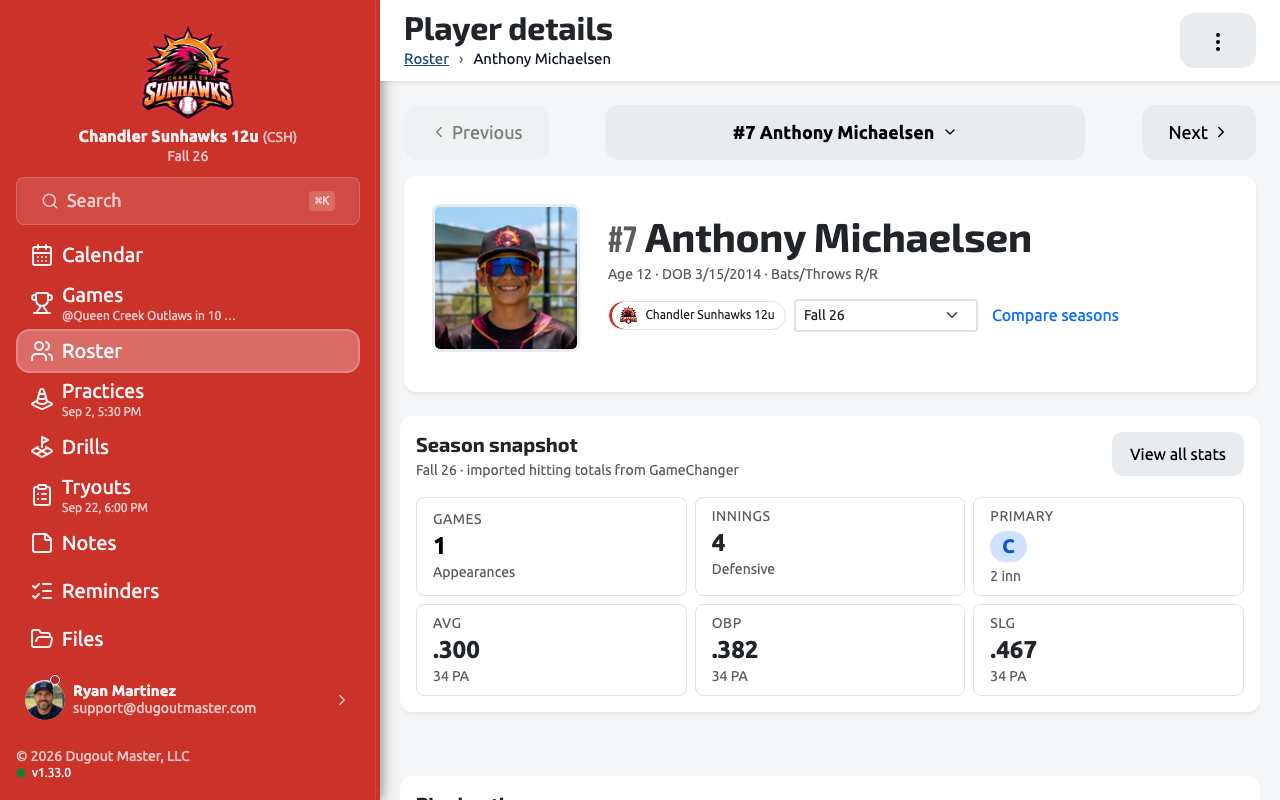
The player page
Section titled “The player page”Opening a player from the roster shows:
- Profile banner — photo, name, team, competition, age, bats/throws, availability status.
- Competition selector — scopes the page to one of the player’s competitions. If GameChanger batting stats were imported for that competition, an Imported batting totals section appears.
- Advanced player insights (Pro+) — bench fairness %, primary/secondary position usage, recent game usage, and position history.
- Availability — see Player Availability.
- Pitching eligibility — shown only if your team has pitch-count rest rules enabled. See Pitch Count Tracking.
- Performance Metrics & Trends — see Player Metrics.
- Tryout — shown only if the player registered through a tryout event, linking back to it, with their registration answers.
- Notes — notes from games or practices tagged to this player. See Game Notes.
- Contact Information — primary contact, shown only if filled in.
From the page’s header menu you can Edit Player, Mark Unavailable, Record Metric, and Add Note.
Player season report
Section titled “Player season report”Every player has a season report: a drag-and-drop dashboard of stats, playing time, position usage, recent games, notes, and videos that you arrange to suit how you coach. Add or remove widgets and rearrange them to put what matters most to you up top.
Team assignments
Section titled “Team assignments”A player can belong to more than one team. The Edit Player page lists every team they’re on with a Remove button per team — removing them from a team doesn’t delete the player or their history.
Deleting and restoring a player
Section titled “Deleting and restoring a player”There’s no “active/inactive” toggle — instead, use Delete from the ··· menu on the Edit Player page. This hides the player from the roster and removes their team assignments, but their history is preserved. Deleted players can be brought back with Restore from the same menu.