
Practices Overview
A practice in Dugout Master is a scheduled team session built from drills, with optional equipment lists, notes, and (for Evaluation sessions) a scoring plan.
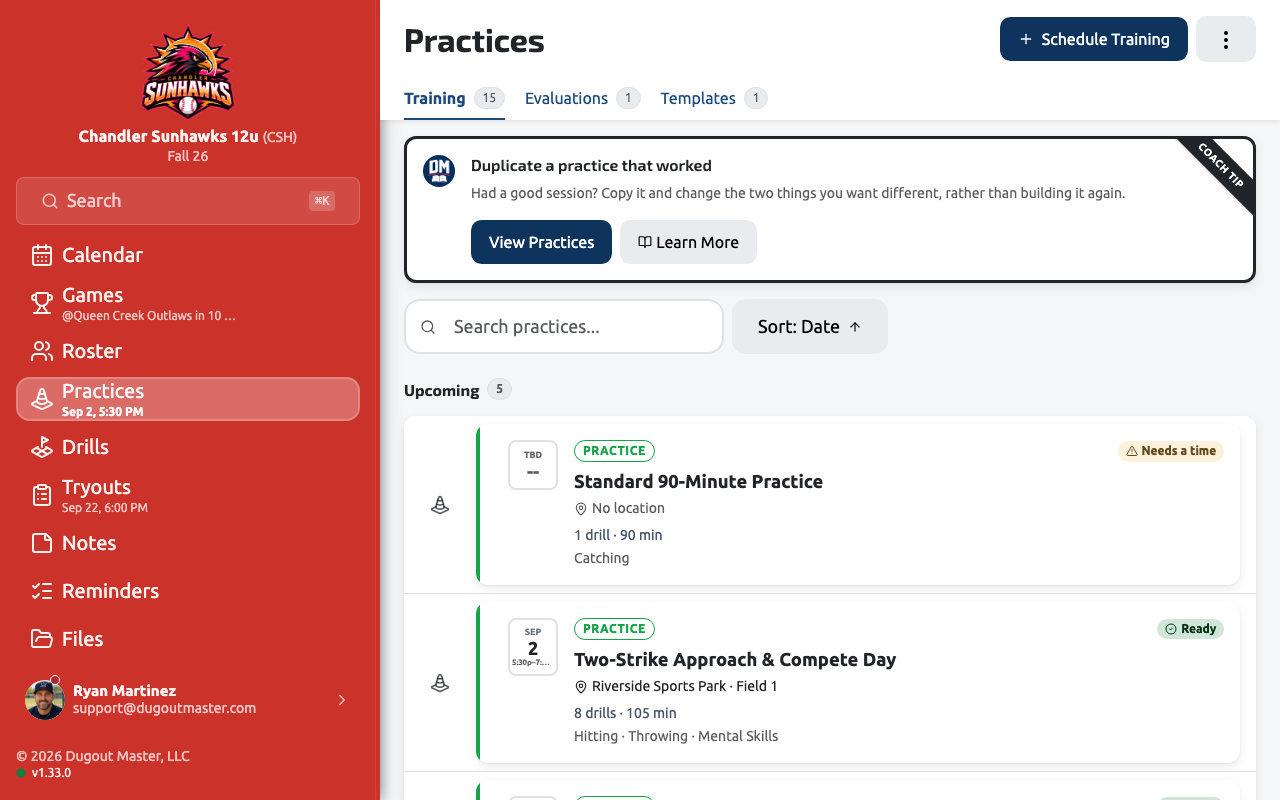
Session types
Section titled “Session types”Every practice is one of two session types:
| Type | Purpose |
|---|---|
| Training | A normal practice — pick drills, run them in order, track equipment |
| Evaluation | A structured skills assessment — mirrors the tryout evaluation flow, with a scoring plan and a results view (Pro) |
Each type has its own workflow and its own reusable templates, so a Training template won’t accidentally carry evaluation criteria and vice versa. See Evaluations & Templates for details.
Building a practice
Section titled “Building a practice”A practice is made up of drills pulled from your team’s drill library, in the order you want to run them. You can add equipment to any drill or to the practice as a whole, and Dugout Master builds a printable equipment checklist for you.
Adding several drills at once
Section titled “Adding several drills at once”The drill picker is multi-select by default — tick as many drills as you want from your library (search, category, and duration filters all narrow the list first), and a footer bar tracks the count (“3 drills selected”) with one button to drop them all into the plan together (“Add 3 Drills”), instead of repeating the whole picker per drill.
Arranging the plan
Section titled “Arranging the plan”The Practice Plan tab is a simple list: each row is one activity with its name and how long it runs. Everything you change saves on its own — there is no Save button, and a small note at the top of the page tells you when it’s saved. If your connection drops, your changes stay on screen and sync as soon as it’s back.
- Add Activity picks from your drill library, or lets you name a quick activity of your own.
- Change a time or a name — tap the activity (or its
···menu, then Edit). The same panel holds notes for the exported plan. - Reorder by dragging the grip on the left of a row to a new spot. A line shows where it will land. With a keyboard, focus the grip and use the up and down arrows.
Stations
Section titled “Stations”When your team splits up and runs activities at the same time, put those activities in a station (up to three). You don’t set one up — just drag:
- Drop an activity onto the middle of another to make a station out of the two.
- Drop an activity into a station to add it.
- Drag an activity out of a station and drop it between rows to take it back out. When a station has only one activity left it goes back to being a plain row.
A station runs for one length of time, shared by everything in it, which you can change from the station’s ··· menu → Edit Station. With a keyboard, the right arrow on a row’s grip groups it with its neighbour and the left arrow takes it out of its station.
The total at the top of the plan always comes from the activities themselves. A practice’s scheduled length, date, time and venue are set in Practice Details, from the Overview tab.
Duplicating a practice that worked
Section titled “Duplicating a practice that worked”Open a practice’s ··· menu and choose Duplicate Practice (or Duplicate Evaluation, for an evaluation session) to reuse one that ran well instead of rebuilding it.
Copied: title, description, the drill plan (stations/activities and their equipment).
Reset:
- You pick a new date, time, and location in the duplicate dialog before it’s created.
- Session status resets to Scheduled; attendance and equipment checked-off state are cleared.
A template (a practice plan saved for reuse) duplicates the same way via Duplicate Template, and stays a template — see Evaluations & Templates. Duplicating a scheduled practice is free; duplicating a template is Pro, the same as creating one.
Running a practice
Section titled “Running a practice”When it’s time to practice, open the practice and start Practice Mode — a focused run/execute view built for the field or gym, not the planning desk. See Running Practice Mode.