Events Overview
An Event is anything you want players or parents to respond to: a tryout, a clinic, private lessons, a showcase, a call for a guest player, a camp, or anything else. Every event gets a public registration page you can share anywhere — a Facebook post or group, an Instagram bio, a group text, an email, your website — and every response lands in one list you manage from the app.
Families register without creating an account, on any phone.
Event types
Section titled “Event types”| Type | What it is | Button on the page |
|---|---|---|
| Tryout | Find players and evaluate them for your roster — includes evaluations and Draft to Team | Register for Tryouts |
| Clinic | Group instruction focused on specific baseball skills | Register for Clinic |
| Lesson | Private or small-group baseball instruction | Request a Lesson |
| Showcase | Give players an opportunity to be seen by coaches and recruiters | Register for Showcase |
| Guest Player | Find a player to temporarily fill a roster spot | I’m Interested |
| Camp | Multi-day or extended baseball instruction and activities | Register for Camp |
| Other | A baseball event that doesn’t fit the other categories | Register |
Not sure which to pick? A clinic teaches a group one skill, a lesson is one-on-one or a very small group, and a showcase is about being seen rather than taught. A camp runs across several days. A tryout is the only type that recruits for a roster.
The type sets sensible registration fields and the button label. It never locks you in — change any field, the button text, or the type itself later.
Creating an event
Section titled “Creating an event”Go to Events → Create Event.
- Pick a type. What are you creating?
- Basics. Title, description, date, start and end time, location, maximum registrations and a registration deadline. The date is optional — leave it empty for something flexible like lessons, and the page says you’ll arrange a time with each family. Events can run over several days.
- Registration. The type’s default fields are switched on. Mark any field Required, Optional or Off, and add your own custom questions — short answer, long answer, dropdown, multiple choice or checkboxes — in any order.
- Publish. The live preview beside the form shows the page exactly as a parent will see it. Save Draft keeps it private; Publish opens registration and hands you the link.
Sharing
Section titled “Sharing”Every published event has:
- Copy Registration Link — paste it into any post, text or email.
- Share — your phone’s share sheet.
- QR code — a printable page for flyers and the field fence.
- View Public Page — see exactly what families see.
Links look like dugoutmaster.com/events/… and keep working for as long as the event exists. Old tryout links (/tryout/…) redirect automatically.
Status
Section titled “Status”| Status | What families see |
|---|---|
| Draft | Nothing — the page isn’t public yet. |
| Published | The page and the registration form. |
| Registration closed | The page, with a note that registration is closed. Reopen any time. |
| Archived | Nothing — the event comes off the public page, the team page and calendars. Registrations and results stay in the app. |
Registration also stops by itself when the event reaches its maximum registrations or passes its registration deadline.
On your Team Page
Section titled “On your Team Page”Published events appear in the Events section of your Public Team Page with their register button — including events with no date, like a guest-player call. Dated events also show on the team page calendar. Turn Show on the team’s public page off for any event you’d rather share only by link, or hide the whole section in the Team Page settings.
Tryouts: evaluations and drafting
Section titled “Tryouts: evaluations and drafting”A tryout does everything above, plus:
- Every registrant becomes a candidate you can score — see Tryout Evaluations.
- Results ranks candidates across every coach’s scores.
- Draft to Team moves chosen candidates straight onto a roster, and marks their registrations Accepted.
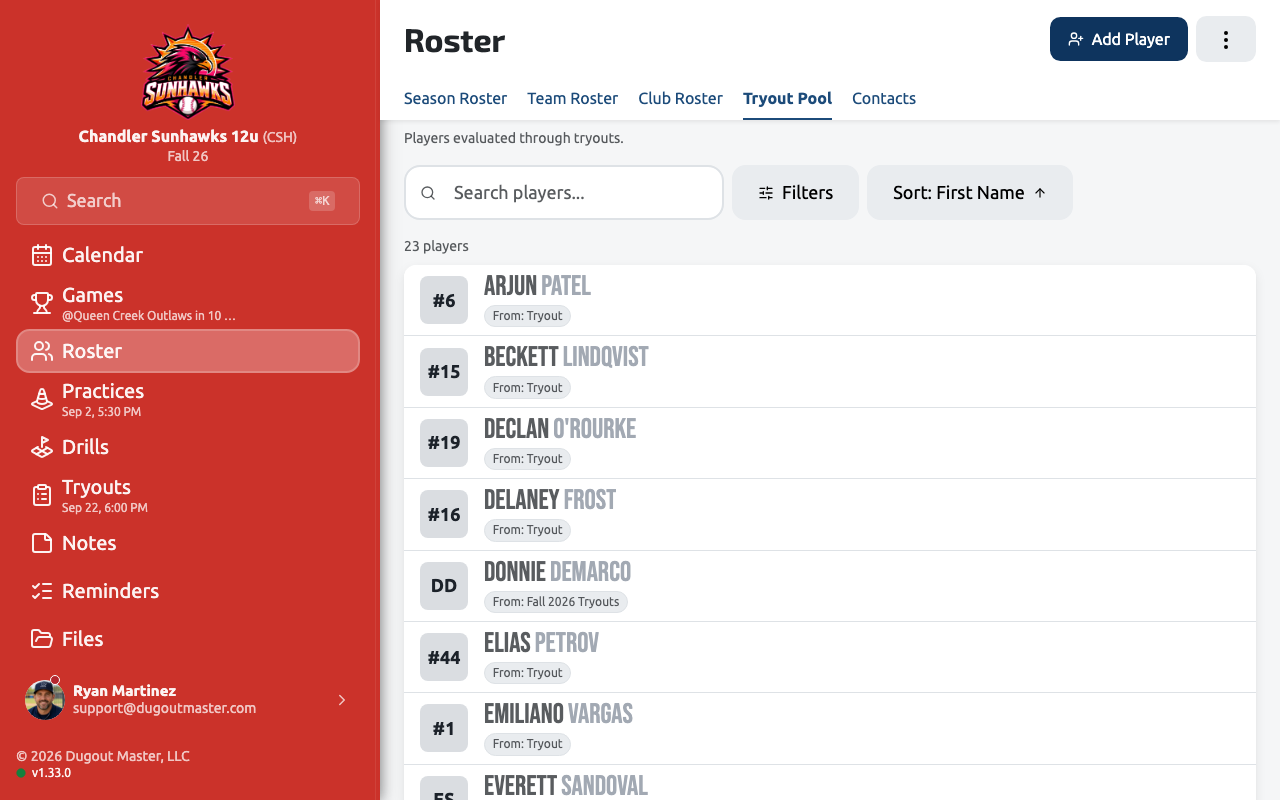
The Candidates tab on the Events page lists everyone who has registered for any of your tryouts, with filters and export.