
Dashboard Overview
Coaches Dashboard
Section titled “Coaches Dashboard”The Coaches Dashboard is your team-management landing page — a focused list of your teams and the teams shared with you, with nothing else competing for space.
- Team cards are evenly sized, up to five per row on desktop, with partial rows centered.
- Every card shows the same details in the same place, and your coaching role reads as a plain label rather than a button.
- Shared Teams shows teams other coaches have shared with you, and each card notes who owns the team.
- A usage counter shows how many of your plan’s team slots you’ve used.
- Pending team invitations show up right on the Dashboard, so you don’t have to dig through email to accept one.
Team Home
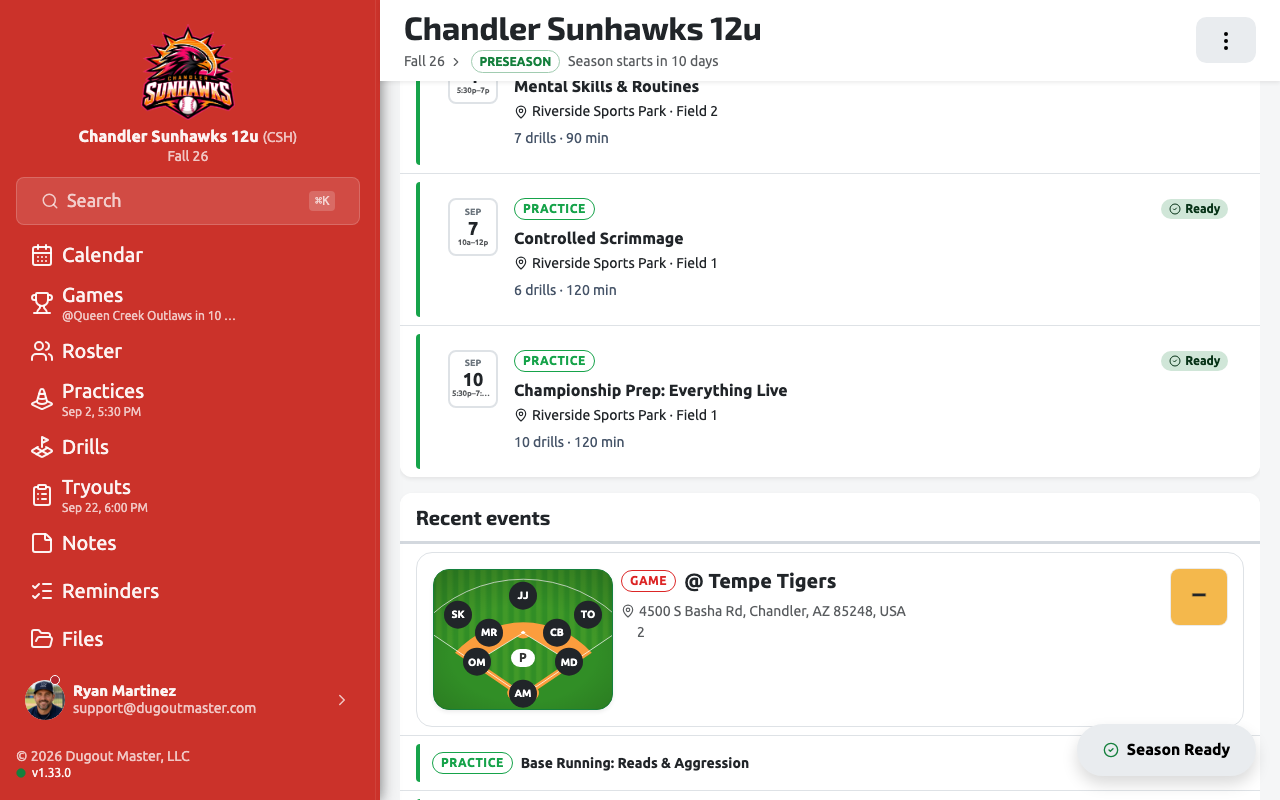
Section titled “Team Home”Team Home is the landing page for a single team once you’re inside it — your organization name, current competition, and a greeting live here, alongside your Coach IQ Insights.
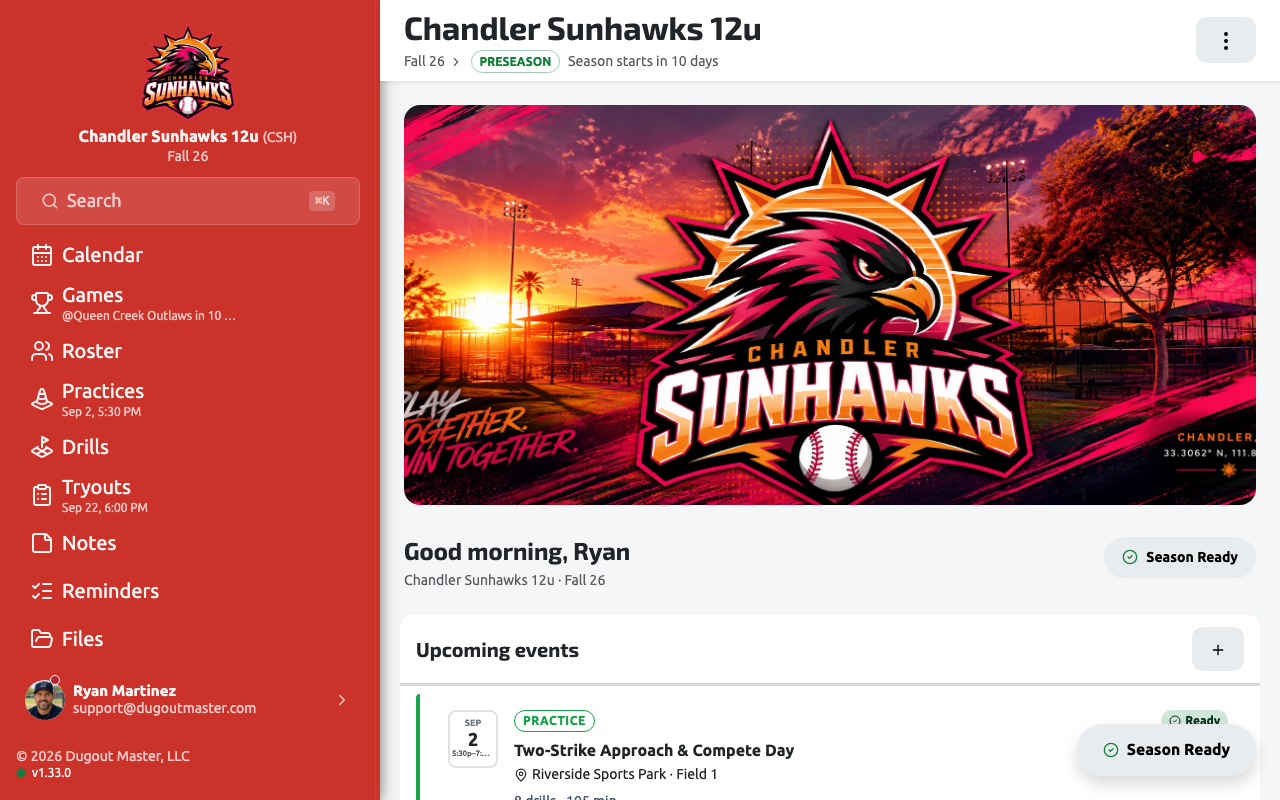
Coach IQ Insights
Section titled “Coach IQ Insights”Team Home automatically surfaces insights drawn from your team’s data — no setup required:
- Playing time gaps
- Pitch count warnings
- Position usage patterns
- Roster signals (like an unusually small or unbalanced roster)
- Missing lineups for upcoming games
- Gaps in your practice schedule
Command Palette
Section titled “Command Palette”Press ⌘K (or Ctrl+K on Windows) from anywhere in the app to open the global Command Palette and jump straight to any player, game, drill, or page. This is the one place search lives in Dugout Master — the old per-page search boxes on Roster, Games, Drills, Notes, and Tryouts were removed once the Command Palette shipped.
Appearance
Section titled “Appearance”Go to Settings → Appearance to choose how Dugout Master looks: System (follows your device), Light, or Dark. This is a per-device setting, and it’s independent of your team’s branding colors — a team’s color stays the same in either theme.