Locations
Locations are the fields, parks, and venues your team actually uses. Save one once and it is there for every game, practice, and event after it — address, directions, and weather included — instead of being searched for again each time you schedule something.
Picking a location
Section titled “Picking a location”Tap the Location field on any Schedule Game, practice, or event form and your saved locations are the first thing you see. Tap one and you’re done — two taps from the form to a chosen field. The location you used most recently sits at the top, and your home field is labelled so it’s easy to spot.
Finding a new location
Section titled “Finding a new location”Choose Find another location at the bottom of the list to search Google for a park, field, school, or facility. Selecting a result saves it to your locations and puts it on the event in one step — there’s nothing to save separately, and it’s on your list next time you schedule.
If your team has no saved locations yet, the picker opens with a single Find a Location button instead.
Managing your locations
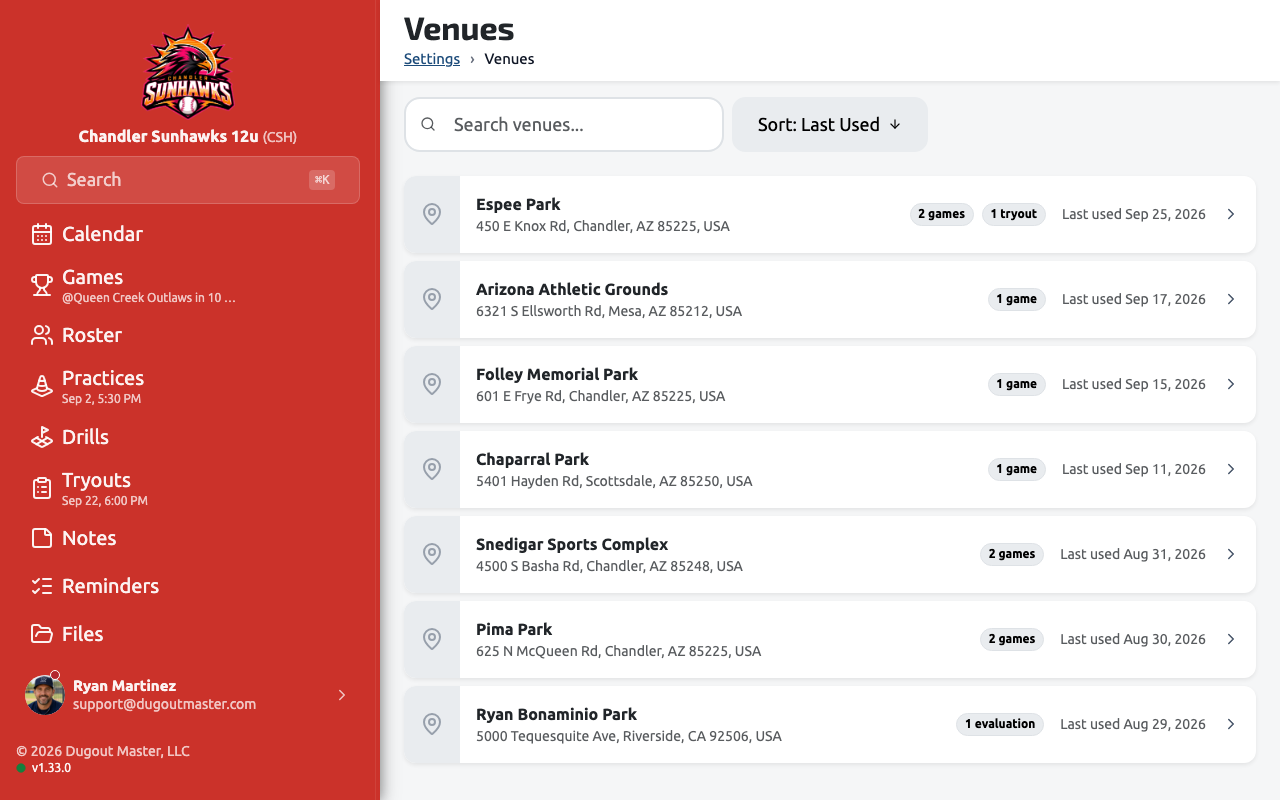
Section titled “Managing your locations”Go to Settings → Locations to see the whole list. From there you can add a location, rename one (for example, “Bogle — Field 2”), set or change your home field, open a location’s details, or remove one you no longer use. Removing a location doesn’t change games or practices already scheduled there.
Location details
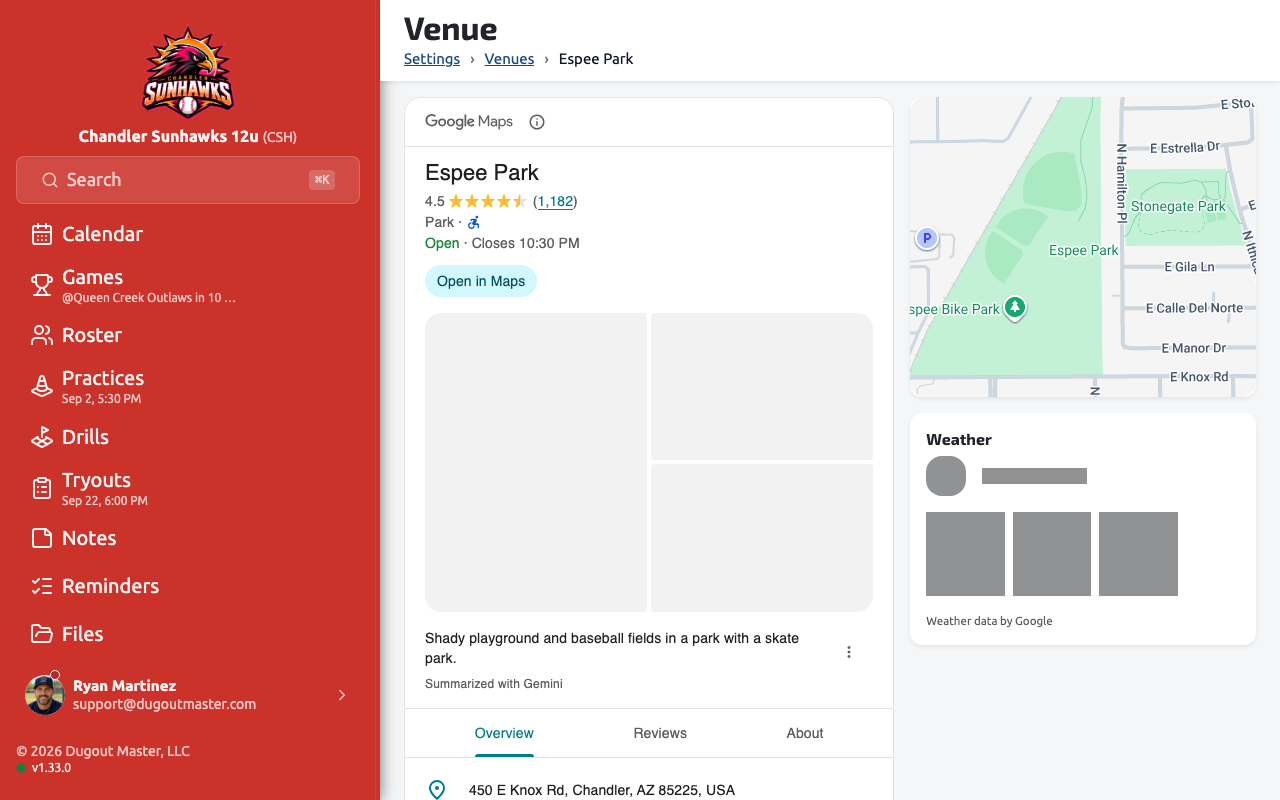
Section titled “Location details”Open a location to see its rating, phone number, hours, and address, kept fresh automatically rather than going stale after you save it once.