
Creating & Editing a Game
This page is a full reference for the game form. For a quick walkthrough, see Creating Your First Game.
Game Details
Section titled “Game Details”| Field | Notes |
|---|---|
| Date & Time | Regular games can’t be scheduled before the competition’s start date. Scrimmages can be scheduled starting from today, even before the competition officially begins. Both are bounded by the competition’s end date. |
| Scrimmage | Checkbox. See Scrimmage games below. |
| Duration | In minutes, 15–240 in 15-minute steps. The form shows the computed start–end time (e.g. “6:00 PM – 8:00 PM • 2 hr”). |
| Opponent | Free text. Shown in the scoreboard header. |
| Home / Away | Segmented toggle next to Opponent. Affects scoreboard display order. |
| Location | Venue/address search. |
| Field | Free text (e.g. “Field 3”, “Diamond A”), up to 50 characters. Only appears once a location is picked. |
| Notes | A single-line description on the game itself — separate from the Notes drawer. |
Field Configuration (creation, or Pro+ to edit later)
Section titled “Field Configuration (creation, or Pro+ to edit later)”- Field configuration — see Field Configurations.
- Innings — 1–15, set only when creating the game.
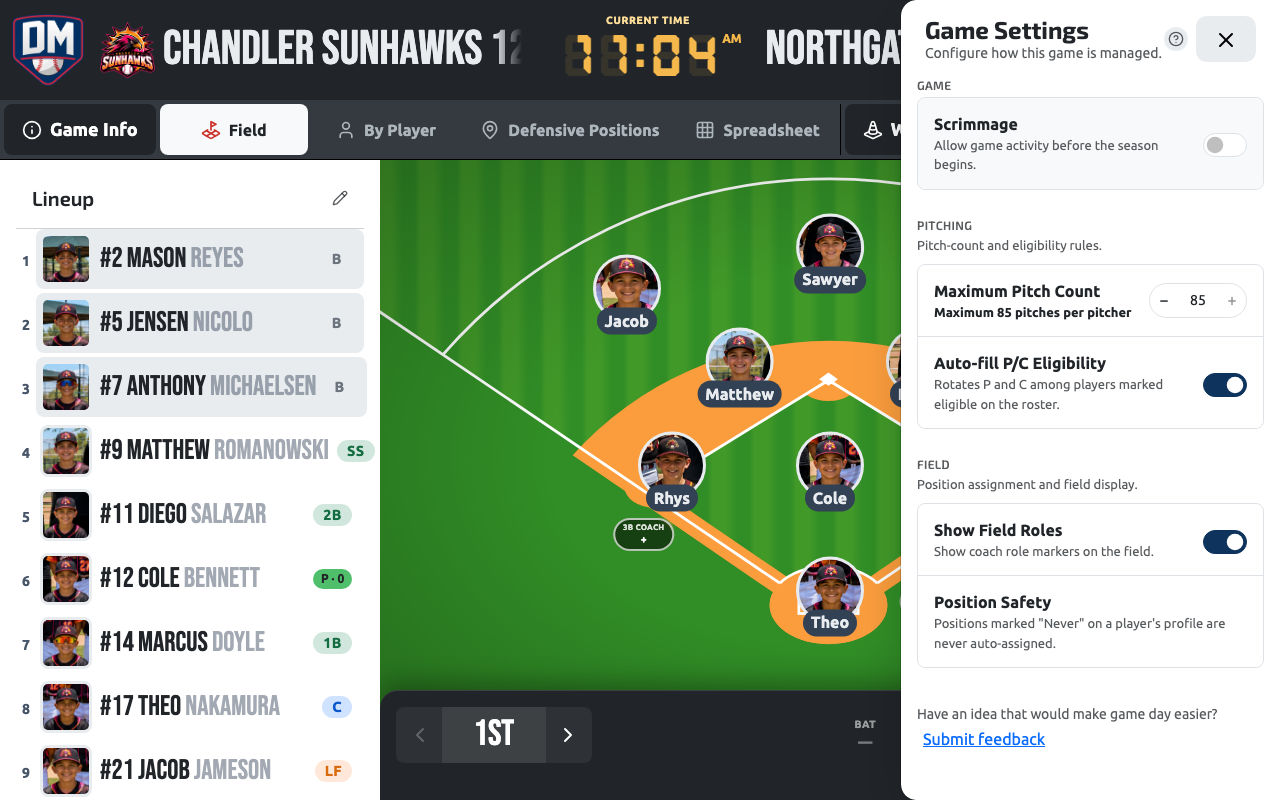
- Show Field Roles (Pro+) — shows or hides bullpen, warm-up, coach, and dugout roles on the field diagram without changing any assignments.
Pitching Rules (Pro+)
Section titled “Pitching Rules (Pro+)”Set a Max Pitch Count for this specific game (0–75; 0 means “use the competition’s limit”). See Pitch Count Tracking.
Pregame Warmup
Section titled “Pregame Warmup”Attach drills from your team’s Drills library to run before the game. See Warm-Up Drills.
Scrimmage games
Section titled “Scrimmage games”Check Scrimmage to mark a game as not counting toward your competition record — it’s excluded from your W–L–T stats and displayed with a Scrimmage badge in the games list. Everything else (lineup, result, notes) works exactly the same as a regular game.
Editing a game
Section titled “Editing a game”Inside the game, the right-hand drawer has three views:
- Game Info — tap the Game Info chip in the workspace toolbar. A read-only summary of the game: opponent, home/away, date and time, a venue card (name, address, field, and Google’s photo of the place when it was picked from Google) with View Map and Venue Details, and the current weather with a refresh button. Nothing here is editable, so it opens without the Live Game Mode PIN.
- Edit Game — the Edit Game button at the bottom of Game Info. Changes what, when and where the game is: Opponent, Home/Away, Date, Start Time, Venue and Field. It autosaves as you type — there’s no Save button; a status line shows Saving…, Saved, or a warning if a save fails. The back arrow returns you to Game Info.
- Clock — the game clock itself, shown to every coach on the team, but starting, stopping, and adjusting it is a Pro feature. On the free tier the clock is visible but read-only.
Game Settings is a separate screen, opened from the ··· Game Options menu rather than this drawer. It controls how the game behaves: Scrimmage, Maximum Pitch Count, Auto-fill P/C Eligibility, Show Field Roles and Position Safety.
Duplicate Game
Section titled “Duplicate Game”Open the game’s ··· menu and choose Duplicate Game to quickly create a similar game — useful for double-headers or a repeat matchup.
Copied: team, competition, description, opponent, home/away, location, field, duration, field configuration, batting order, warm-up drills, max pitch count, the Show Field Roles toggle, the scrimmage flag, and the full inning-by-inning lineup (every position and bench assignment).
Reset:
- The date is set to one day after the original game, at the same time.
- Status resets to Scheduled; the result and completion date are cleared.
- Notes are not copied.
- The coach list resets to just you.
After duplicating, Dugout Master takes you straight to the new game with the Edit Details drawer already open so you can adjust the opponent, date, or location before saving.